Windows Remote Desktop: From Start to Connection
Category: Windows Remote Published: 3/10/2026
1. Preparation
1.1 System Requirements
✅ Two Windows computers (Windows 10/11 supported; older versions lack security updates and are not recommended)
✅ Both on the same network (or mutually accessible)
✅ Know the target computer's IP address
✅ Have the target computer's login account and password
2. Enabling Remote Desktop (Host Computer Setup)
Method 1: GUI Setup (Recommended)
Step 1: Open Settings
Open Windows Settings (Shortcut: Win + I) → Navigate to "System → Remote Desktop"
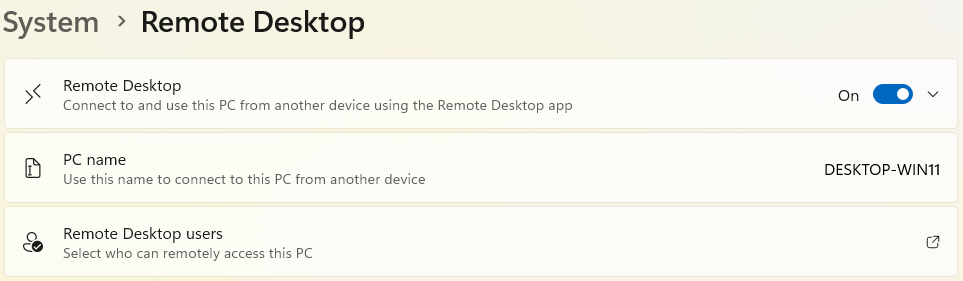
Toggle "Enable Remote Desktop" → Set to "On" → Click "Confirm" when prompted
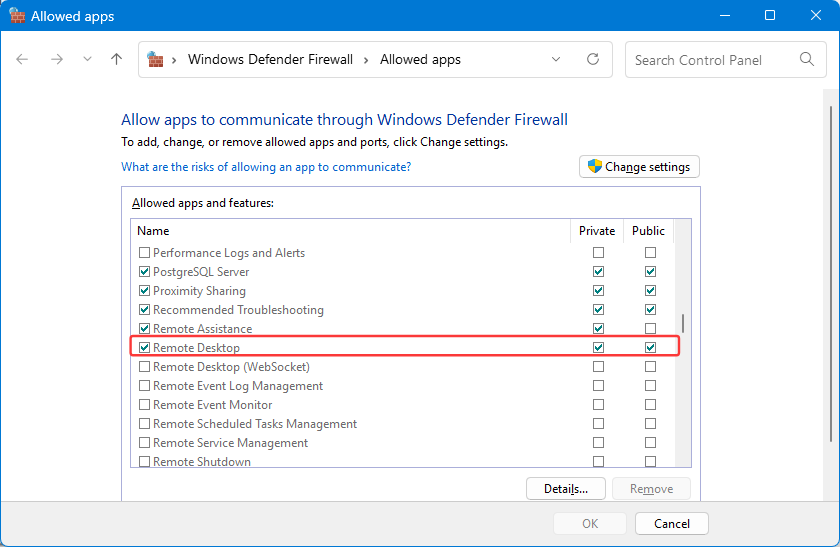
Step 2: Verify Firewall Settings
Scroll down to Remote Desktop and ensure it's allowed. For personal computers, this is typically configured automatically when enabling Remote Desktop.
3. Getting Connection Information
3.1 Find IP Address
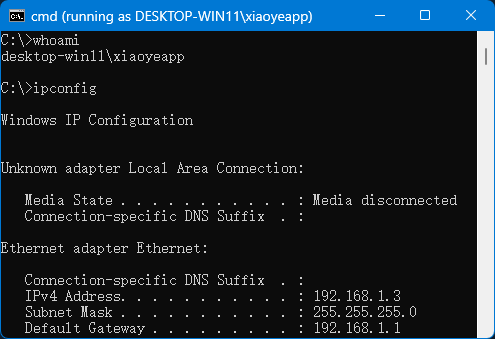
# Open Command Prompt on the host computer and run ipconfig
# Locate this line:
IPv4 Address . . . . . . . . . : 192.168.1.3 ← Note this IP
3.2 Find Login Account
# Open Command Prompt on the host computer and run whoami to see current user
# Display format: "Computer Name\User Name" (for domain-joined computers: "Domain Name\User Name")
# Example: desktop-win11\xiaoyeapp
4. Starting the Connection (Client Computer)
4.1 Open Remote Desktop Client
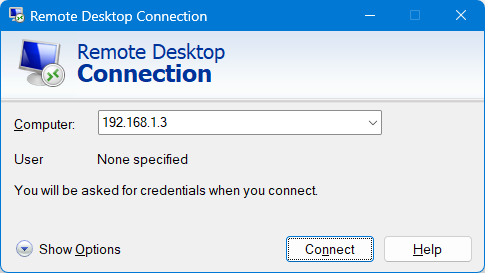
Method 1: Windows key → Type "Remote" → Click "Remote Desktop Connection"
Method 2: Win + R → Type "mstsc" → Press Enter
4.2 Enter Connection Information
Computer: Enter IP address (e.g., 192.168.1.100) or computer name (e.g., desktop-11)
User Name: Enter the host computer's account (e.g., xiaoyeapp).
For reliability, use the full format shown above (e.g., "desktop-win11\xiaoyeapp") if unsure about the host environment (domain-joined, etc.)
Click "Connect"
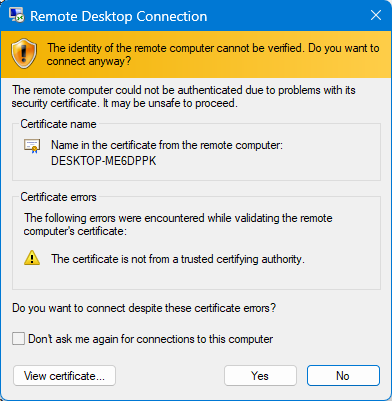
4.3 Certificate Confirmation
Method 1: Check "Don't ask me again for connections to this computer" to bypass warning in future connections
Method 2: Import the certificate to local root certificate store (requires connecting using the host computer name, not IP address)
That's it! These are the complete basic steps for Windows Remote Desktop—from enabling to connecting. Simple as that.
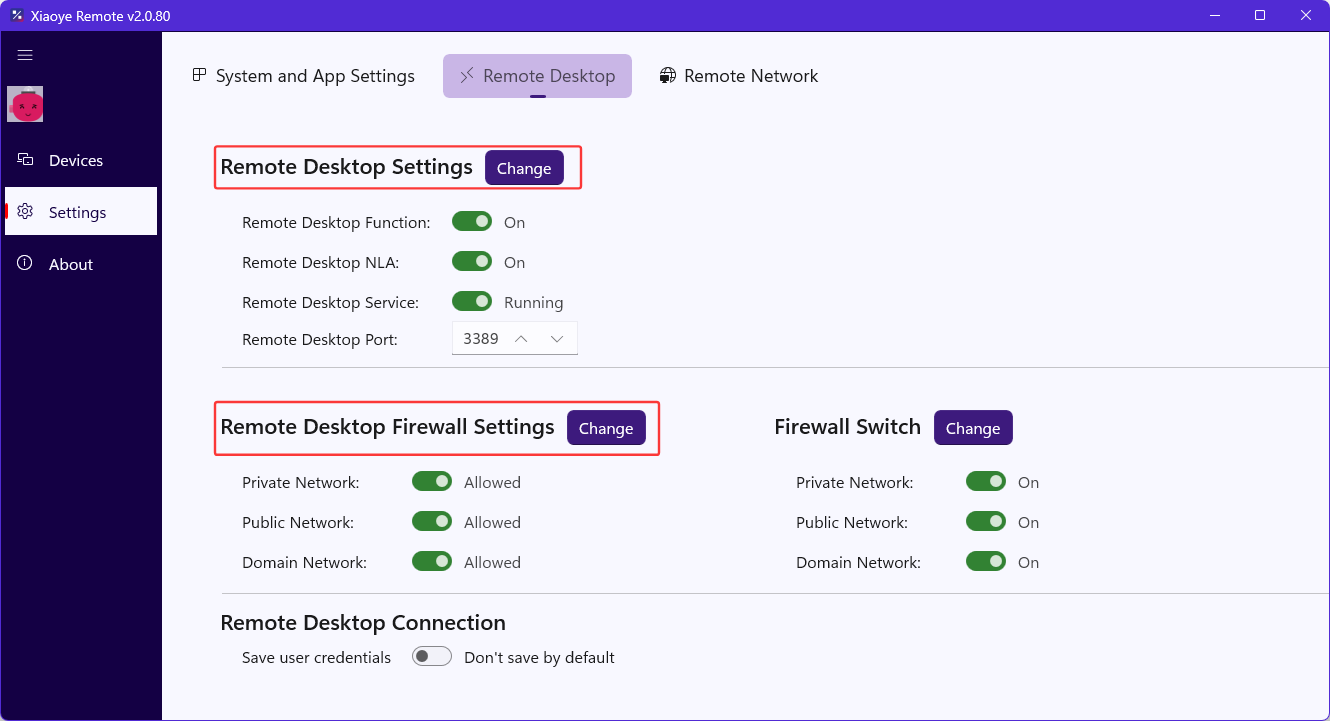
If you find these steps complicated, you can try "Xiaoye Remote Control": Just go to Settings → Remote Desktop on the host computer and ensure both "Remote Desktop Settings" and "Remote Desktop Firewall Settings" are enabled and allowed. Usually, that's all you need.
Having issues? Feel free to leave a comment!